
Congratulations on choosing Novastar IPTV, the premium streaming service poised to revolutionize your home entertainment! You've made the smart decision to invest in a world of endless content, crystal-clear quality, and unparalleled variety. Now, the next exciting step is getting your Novastar IPTV service up and running on your favorite devices. You might be wondering, 'How complicated is this going to be?' The excellent news is that installing Novastar IPTV is remarkably straightforward, designed for ease of use across a wide array of platforms, from your Amazon Firestick to your Smart TV, Android box, iOS device, and even your PC. This comprehensive 2026 guide will walk you through each step, ensuring a seamless setup process so you can start enjoying your Novastar IPTV subscription without any hitches. Get ready to unlock an extraordinary viewing experience in minutes – let's dive into setting up your new Novastar IPTV service and immerse yourself in a universe of entertainment!
Effortless Setup: Installing Novastar IPTV on Your Firestick
The Amazon Firestick is a hugely popular streaming device, and installing your Novastar IPTV service on it is incredibly simple, making it one of the quickest ways to access your vast content library. This process is designed to be user-friendly, ensuring you can go from unboxing to streaming your favorite channels in just a few minutes. Getting your Novastar IPTV subscription working on a Firestick will unlock thousands of channels and VOD titles directly on your television.
Here’s a step-by-step guide to install Novastar IPTV on your Firestick:
1. **Prepare Your Firestick:** From your Firestick's home screen, navigate to `Settings` > `My Fire TV` > `Developer Options`. If you don't see `Developer Options`, go to `About` and click on your Firestick device name seven times. Then, enable `Apps from Unknown Sources` and `ADB Debugging`.
2. **Install Downloader App:** Go back to the home screen, select the `Search` icon (magnifying glass), and type `Downloader`. Select the Downloader app from the results and install it. This app is essential for sideloading applications not directly available in the Amazon App Store, which is often how IPTV players are installed.
3. **Download IPTV Player:** Open the Downloader app. In the URL field, you'll enter the direct download link for your preferred IPTV player, such as 'IPTV Smarters Pro' or a similar Novastar IPTV recommended application. You will receive this link with your Novastar IPTV subscription details. Carefully type the URL and click `Go` to download the APK file.
4. **Install the Player:** Once the download is complete, Downloader will prompt you to install the application. Click `Install`, then `Done` once the installation finishes. You can now delete the APK file to free up space.
5. **Configure Novastar IPTV:** Launch the newly installed IPTV player. You will be prompted to log in. Select `Load Your Playlist or File / URL` or `Login with Xtream Codes API`. Enter the username, password, and server URL (portal URL) provided in your Novastar IPTV subscription confirmation email. Click `Add User` or `Login`, and the application will load all your Novastar IPTV channels and VOD content. You are now ready to enjoy your premium Novastar IPTV service on your Firestick, transforming your TV into an entertainment powerhouse. This quick setup highlights the ease of access to your new Novastar IPTV subscription.
Seamless Integration: Smart TV & Android Device Novastar IPTV Setup
Beyond the Firestick, Novastar IPTV offers robust compatibility with a multitude of Smart TVs and Android-powered devices, ensuring that you can enjoy your premium content on virtually any screen in your home. Setting up your Novastar IPTV subscription on these platforms is designed to be intuitive, allowing you to quickly transition from a traditional viewing experience to the dynamic world of Novastar IPTV. This section guides you through the process, making it easy to buy Novastar IPTV and get it running on your preferred smart devices.
For Smart TV owners, particularly those with Samsung or LG models, the installation process typically involves utilizing popular IPTV applications found directly in your TV's app store. Search for apps like 'Smart IPTV' (SIPTV) or 'GSE Smart IPTV'. Once you've downloaded and installed one of these applications, open it. The app will usually display a MAC address. You'll then need to visit the app's official website on a separate device (like a computer or smartphone) and enter this MAC address, along with your Novastar IPTV M3U URL or Xtream Codes API details, which you received upon purchasing your Novastar IPTV subscription. After saving the settings on the website, restart the app on your Smart TV, and your Novastar IPTV channels and VOD library will load, providing instant access to thousands of entertainment options. This method streamlines the process of integrating your Novastar IPTV service directly into your TV's interface.
Android TV boxes, smartphones, and tablets offer even greater flexibility for your Novastar IPTV subscription. The recommended application for these devices is often 'IPTV Smarters Pro' or a similar robust player. You can easily download IPTV Smarters Pro from the Google Play Store. Once installed, launch the app and select 'Login with Xtream Codes API'. You will then enter the unique username, password, and server URL (portal URL) that was provided with your Novastar IPTV subscription. After inputting these credentials, the app will connect to the Novastar IPTV servers and populate your entire content library, including live channels, movies, and series. The user-friendly interface of IPTV Smarters Pro makes navigating your Novastar IPTV service incredibly intuitive, offering features like EPG (Electronic Program Guide), Catch-Up TV, and favorites management.
Whether you're using a dedicated Android TV box, a gaming console running Android software, or simply your Android smartphone or tablet, the setup process remains largely consistent and hassle-free. This broad compatibility means that once you buy Novastar IPTV, you're not restricted to a single device; your premium entertainment follows you across your entire ecosystem of Android-powered gadgets. The ease of installation and consistent performance across these diverse platforms further solidifies Novastar IPTV as a superior choice for flexible and accessible entertainment, ensuring that you can always enjoy your purchased Novastar IPTV subscription wherever you are.
Universal Access: Novastar IPTV on iOS, PC, & Other Devices
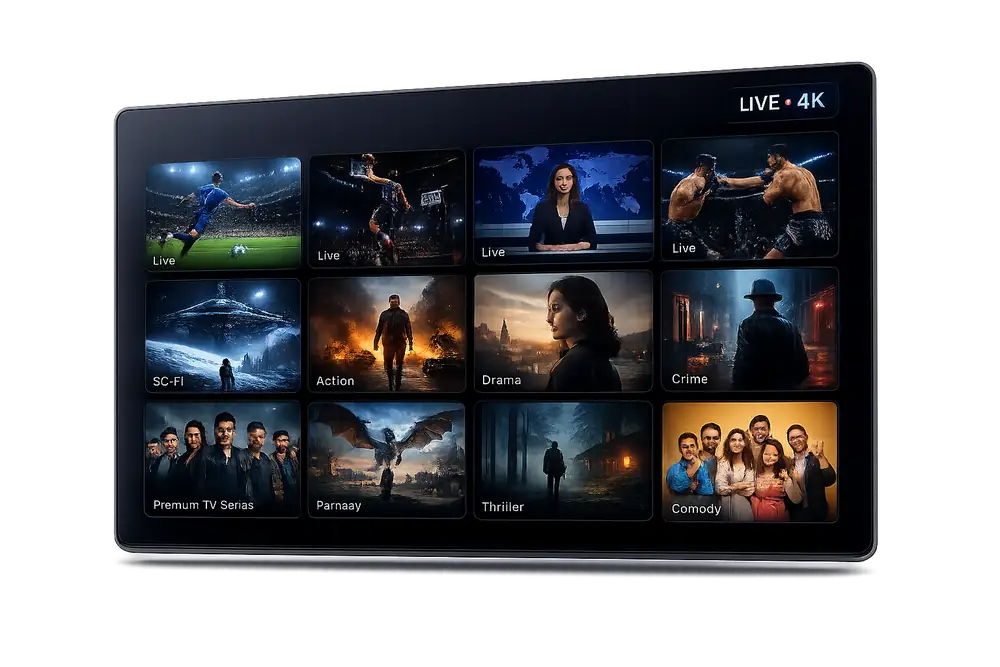
Novastar IPTV is committed to universal accessibility, ensuring that your premium entertainment isn't confined to just a few devices. Our service extends its robust compatibility to iOS devices, personal computers (Windows and Mac), and even specialized hardware like MAG boxes, providing a truly comprehensive viewing experience across all your tech. This broad device support means that when you buy Novastar IPTV, you're investing in an entertainment solution that integrates seamlessly into your existing digital life, offering unparalleled flexibility for your Novastar IPTV subscription.
For users of Apple's ecosystem, installing Novastar IPTV on iPhones and iPads is a straightforward process. The recommended application for iOS devices is often 'GSE Smart IPTV' or 'IPTV Smarters Pro', both readily available for free download from the Apple App Store. Once you've installed your preferred app, open it. You'll typically find an option to add an M3U URL or log in via Xtream Codes API. Input the M3U playlist URL or the username, password, and server URL provided with your Novastar IPTV subscription. The app will then connect to the Novastar IPTV servers and load your entire channel lineup and VOD library, transforming your iPhone or iPad into a powerful portable entertainment hub. Enjoy crystal-clear streaming on the go, making your Novastar IPTV subscription truly mobile.
PC users are not left out of the Novastar IPTV experience. Whether you're running Windows or macOS, you have excellent options for enjoying your Novastar IPTV service on a larger screen. For Windows users, 'IPTV Smarters Pro' desktop application is a popular choice, offering a feature-rich interface similar to its mobile counterpart. Alternatively, VLC Media Player, a free and open-source multimedia player, can also be configured to play your Novastar IPTV M3U playlist. Simply download VLC, open it, navigate to 'Media' > 'Open Network Stream', and paste your M3U URL. Mac users can also utilize VLC Media Player or IPTV Smarters Pro for macOS to connect to their Novastar IPTV subscription, providing a robust and reliable desktop viewing solution.
For those who prefer dedicated hardware, Novastar IPTV also supports MAG devices. Configuring Novastar IPTV on a MAG box involves entering the portal URL provided with your subscription into the device's settings. This ensures a stable and high-performance streaming experience, often favored by users who prioritize a dedicated media center setup. The detailed instructions for MAG device setup are typically included in your Novastar IPTV subscription confirmation. This extensive device compatibility underscores Novastar IPTV’s commitment to providing universal access to its premium content, ensuring that no matter your device preference, you can easily install and enjoy your Novastar IPTV service.
Troubleshooting Tips: Ensuring a Smooth Novastar IPTV Experience
Even with the most advanced and user-friendly systems, occasional questions or minor technical hiccups can arise. This section provides essential troubleshooting tips to help you maintain a seamless Novastar IPTV experience and quickly resolve common issues. Our goal is to ensure you maximize your Novastar IPTV subscription with minimal interruptions, solidifying why you chose to buy Novastar IPTV.
**Buffering Issues:** If you experience buffering, the most common culprit is your internet connection. First, check your internet speed using an online speed test. Novastar IPTV recommends a minimum of 25-50 Mbps for optimal HD/4K streaming. If your speed is low, try restarting your router and modem. Disconnect other devices consuming bandwidth. If the issue persists, try switching to a different server within your IPTV player (if available) or contact your internet service provider. Sometimes, a simple app restart or device reboot can also resolve temporary buffering issues for your Novastar IPTV service.
**Channel Not Loading/Login Errors:** If a specific channel isn't loading or you encounter login errors, double-check your username, password, and server URL for typos. These are case-sensitive and must match precisely what was provided with your Novastar IPTV subscription. Ensure your internet connection is stable. If you're still facing issues, try refreshing your playlist within the IPTV player or clearing the app's cache. If the problem persists across multiple channels, it might indicate an issue with your Novastar IPTV subscription itself, which leads to the next point.
**Contacting Novastar IPTV Support:** For any persistent or complex issues that these troubleshooting tips don't resolve, don't hesitate to reach out to Novastar IPTV's dedicated customer support. We pride ourselves on offering responsive and knowledgeable assistance. Our support team is available 24/7 via live chat or email, ready to help you with any installation, configuration, or streaming problems you might encounter. Providing them with details like your device type, the specific issue, and any error messages will help them diagnose and resolve your problem quickly. We are committed to ensuring your Novastar IPTV subscription delivers an uninterrupted, premium entertainment experience. Remember, when you buy Novastar IPTV, you also get access to unparalleled customer care.
You've now successfully navigated the straightforward process of installing Novastar IPTV on your preferred devices. From the versatile Firestick to Smart TVs, Android boxes, iOS, and PCs, accessing your premium entertainment has never been easier or more flexible. With Novastar IPTV, you've unlocked a world of over 15,000 live channels, a colossal 50,000+ VOD library, and unparalleled 4K streaming quality, all at your fingertips. The power to control your entertainment is now truly yours, without the constraints of traditional cable. Don't let another moment go by without experiencing the difference. If you haven't yet secured your access, it's time to take the plunge. Visit our website, choose your ideal Novastar IPTV subscription, and buy Novastar IPTV today to embark on an extraordinary journey of limitless entertainment. Install, stream, and enjoy – the future of television awaits with Novastar IPTV!